VLAB Access – OCTOPUZ
Virtual Lab Setup for Robot Programming
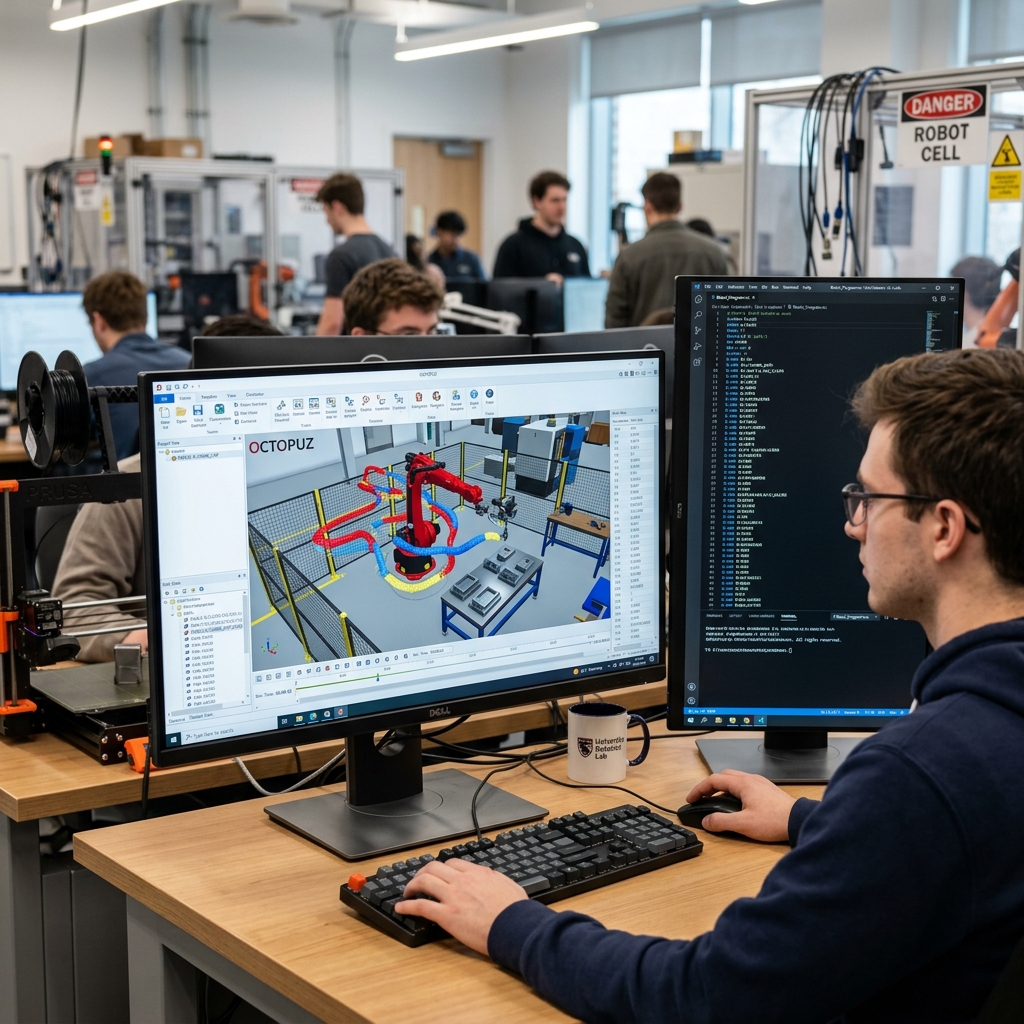
OCTOPUZ · Offline Robot Programming · COE VLAB
OCTOPUZ software is available via the COE Virtual Lab (VLAB). This allows you to program robots from any device, anywhere.
📝 Overview:
This guide walks you through account registration, VPN connection, and client installation needed to access the virtual desktop.
This guide walks you through account registration, VPN connection, and client installation needed to access the virtual desktop.
🔑 Step 1: COE Account
Register for Engineering Services
1
Request an Account:
Visit the COE/ECE Computer Account page and click "Request an account."
Visit the COE/ECE Computer Account page and click "Request an account."
⚠️ Network Restriction:
The registration form requires you to be on the NUwave campus network or connected to the NU VPN. If you are off-campus, complete Step 2 (VPN) first.
The registration form requires you to be on the NUwave campus network or connected to the NU VPN. If you are off-campus, complete Step 2 (VPN) first.
🌐 Step 2: NU VPN
Access the Campus Network from Home
Required only if you are working off-campus.
A
2FA Enrollment: Ensure you are enrolled in NU 2FA.
B
Client: Download GlobalProtect at vpn.northeastern.edu.
C
Login: Sign in with your standard NU Credentials (not COE).
🖥️ Step 3: Horizon Client
Installing the Omnissa Connection Tool
The Horizon Client provides a better experience than the web browser version.
Server Address:
Once installed, add this server to the client:
omnissaconnect.coe.neu.edu
macOS
Version 8.15.0 (2503)
Windows
Version 8.17.1 (2512.1)
🍎 macOS Download
Version 8.15.0 (2503)
Verify your download:
File: Omnissa-Horizon-Client-2503-8.15.0-14236092062.dmg
MD5: 4baa68df8a93e7dde1dbc3c4e6a6ef37
SHA256: a3d5169fb8383aff63c0f19628ea889b3be965734556870b3cf9845fb0d3d5c5
File: Omnissa-Horizon-Client-2503-8.15.0-14236092062.dmg
MD5: 4baa68df8a93e7dde1dbc3c4e6a6ef37
SHA256: a3d5169fb8383aff63c0f19628ea889b3be965734556870b3cf9845fb0d3d5c5
🪟 Windows Download
Version 8.17.1 (2512.1)
Verify your download:
File: Omnissa-Horizon-Client-2512-8.17.1-22261173697.exe
MD5: 17a3343dcdb320df65dea950b49da4c8
SHA256: 107befe2bad4d765c957ca7b2522117866ce93b7ae4fa75e7029132f225fef27
File: Omnissa-Horizon-Client-2512-8.17.1-22261173697.exe
MD5: 17a3343dcdb320df65dea950b49da4c8
SHA256: 107befe2bad4d765c957ca7b2522117866ce93b7ae4fa75e7029132f225fef27
🔓 Step 4: Login & Select VM
Accessing the Windows Environment
1
Credentials: Sign into the client using your COE Username and COE Password (the ones you requested in Step 1).
2
Pool Selection: Once logged in, double-click the "COE Windows 11" icon.
💡 Note:
The first time you log in, it may take 1-2 minutes to prepare your virtual desktop profile.
The first time you log in, it may take 1-2 minutes to prepare your virtual desktop profile.
🤖 Step 5: Find OCTOPUZ
Start Programming
Inside the virtual desktop:
- Click the Start Menu (Windows Icon).
- Click All Apps.
- Scroll to OCTOPUZ and select it.
- Open the IE 4531 folder for course assets.
🚀
Setup Complete!
You are now ready for the Offline Robot Programming Lab.