IE 4531: Online Robot Programming Lab
Part Transfer with the UR5e Collaborative Robot Arm
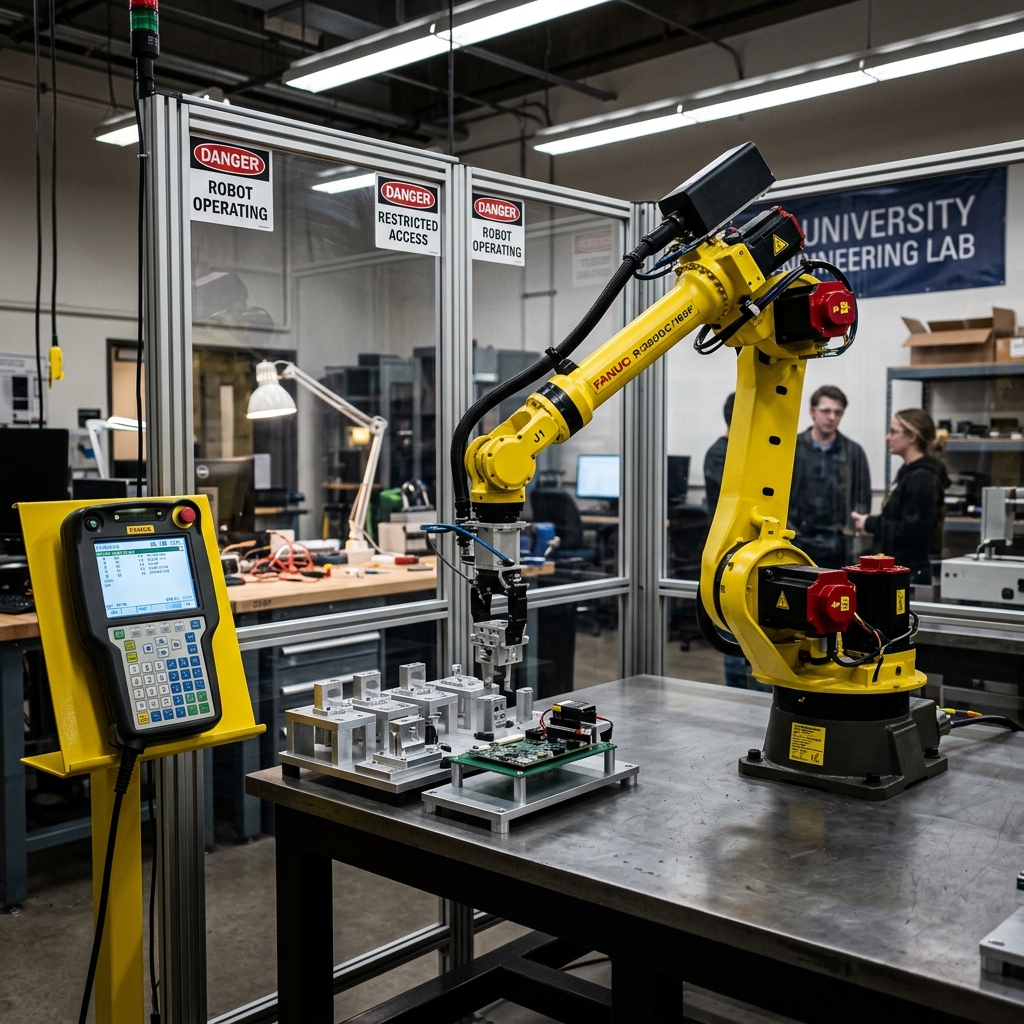
Program a Universal Robots UR5e to transfer cell phone cases from a part carrier to an assembly fixture — all using the PolyScope teach pendant.
The UR5e is designed to work alongside humans in shared workspaces. It's used in part transfer, machine tending, inspection, assembly, and lightweight tool handling — making it one of the world's best-selling robot arms.
🎯 Today's Goals
What you will master in this session
Robot Anatomy
Identify the six joints (Base → Shoulder → Elbow → Wrist 1-3) and work envelope of the UR5e.
PolyScope Interface
Navigate the Program tab, Move tab, I/O tab, and Dashboard to control and monitor the robot.
Part Transfer Program
Build a complete robot program with 5 waypoints (A→B→C→D→E) using MoveJ, MoveL, Set, Wait, and Direction commands.
⚠️ Lab Safety Rules
Robots require special awareness — read carefully
🚨 Emergency Stop First
Know the location of the emergency stop button before the robot moves. Activate it immediately in any abnormal situation.
🚫 Never Enter the Work Envelope
Do not enter the robot's operating range unless the risk assessment permits it.
👓 Safety Glasses + Closed-Toe Shoes
Required at all times. Closed-toe shoes with no loose clothing or jewelry.
🧑💻 Use Simulation First
Test all programs in simulation mode before running on the real robot.
⚠️ Heads & Faces Away
Keep your head and face outside the robot's reach at all times while operating.
🔐 UR Robot Safety Requirements
Specific to UR5e operation
🦴 UR5e Anatomy
Six joints, 850mm reach, 5kg payload
📱 PolyScope Interface
The UR5e teach pendant — your command center
Program Tab
Build programs by selecting nodes (Move, Set, Wait, etc.) and placing them in the Program Tree. Cut, Copy, Paste supported.
Move Tab
Manually jog the robot using arrow keys, Freedrive mode, or direct data entry of target coordinates.
I/O Tab
Monitor and set live digital/analog Input/Output signals to and from the robot controller.
Dashboard
Start, stop, single-step, and restart programs. Speed slider adjusts robot velocity in real time.
🔄 Move Commands
Three ways to move the robot arm
MoveJ
Joint-space motion. Each joint reaches the target simultaneously. Results in a curved path for the tool. Fast and efficient for large movements.
MoveL
Linear Cartesian motion. The TCP moves in a straight line between waypoints. Used when the path must be controlled — e.g., entering a fixture.
MoveP
Linear motion at constant speed with circular blends. Used for process operations like gluing or dispensing.
📌 Waypoints & Key Commands
The building blocks of robot programs
| Command | Type | Description |
|---|---|---|
| Fixed Waypoint | Waypoint | Physically move the robot to the position and teach it. Stored as absolute Cartesian coordinates. |
| Relative Waypoint | Waypoint | Position defined relative to the robot's previous position (e.g., "2 inches left"). |
| Direction | Motion | Defines a vector direction for linear motion with a stop criterion (e.g., move Z- until a sensor reads High). |
| Wait | Timing | Pauses execution for a set time or until an I/O signal condition is met. |
| Set | I/O / Config | Sets digital/analog outputs to a value or sends a single pulse. Also used to set robot payload. |
| Popup | HMI | Displays a message on screen when the program reaches this node. |
📍 The 5 Waypoints
One complete pick-and-place cycle
Safe resting position. Start and end of every cycle.
Above the pick location. Visited twice per cycle.
Exact pick location. MoveL required. Gripper closes here.
Above the place fixture. Visited twice per cycle.
Moves Z- until AsmWpAvail sensor reads High. Gripper opens here.
Returning to A (home) between B and D avoids potential collisions through a known, clear path.
📝 Programming: Steps 1–4
Building the pick sequence
Point A — Home: Create a MoveJ command. Add a Fixed Waypoint for the home position.
Point B — Approach Pick: Add another Fixed Waypoint to the same MoveJ command. This is the approach position above the part carrier.
Point C — Pick Position: Create a NEW MoveL command (not MoveJ). Add a Fixed Waypoint. Verify Tool Position values match the tutorial before proceeding.
Close Gripper: Create a Set command → Set Digital Output → CloseGripper → High.
📝 Programming: Steps 5–9
Payload, delay, and the place approach
Set Payload: Create a Set Payload command → Custom Payload → Mass → 0.05 kg. This prevents a protective stop when carrying the part.
Wait (Grip): Create a Wait command → 1.0 seconds. Gives the gripper time to fully close on the part.
B → A → D (Retract, Home, Approach Place): Copy Point B and Point A. Paste them after the Wait in that order. Then create a new Fixed Waypoint for Point D. Verify Tool Position values for D.
Point E — Place Position: Create a Direction command → Direction: Z- → Add Until → Until Digital Input → AsmWpAvail → High. The robot moves down until the assembly sensor detects the part.
Open Gripper: Create a Set command → Set Digital Output → OpenGripper → High.
📝 Programming: Steps 10–14
Return home and complete the cycle
Reset Payload: Create a Set Payload command → Select Payload (resets to empty gripper weight).
Wait (Release): Create a Wait command → 1.0 seconds. Gives the gripper time to fully open and release the part.
D → A (Retract and Return Home): Copy Point D and Point A. Paste after the Wait to retract from the fixture and return to home.
Reset Gripper: Create TWO Set commands:
→ CloseGripper → Low
→ OpenGripper → Low
(Order does not matter. This deactivates both gripper signals.)
Popup Message: Create a Popup command. Add a message for the worker confirming the cycle has completed successfully.
🗂️ Complete Program Structure
One full pick-and-place cycle at a glance
📖 Key Definitions
UR5e programming vocabulary
| Term | Definition |
|---|---|
| Program Tree | The left-side panel showing the program as an ordered list of commands. Click any node to view/edit its parameters. |
| TCP | Tool Center Point — the characteristic point at the end of the robot arm, shown as a small blue ball in the interface. |
| Dashboard | Bottom panel with Start/Stop/Step controls and a real-time speed slider that respects safety limits. |
| Variables | Store values during runtime: bool, int, float, string, pose (X,Y,Z,RX,RY,RZ). |
| Freedrive | Physical teaching mode — hold the button and manually move the robot arm to the desired position. |
| Installation Variables | Variables that persist across programs and are saved with the robot installation file. |
🔌 I/O & Simulation Tips
Signals and safe testing practices
I/O Tab
Displays live digital and analog I/O signals in real time (updated at 10 Hz). Changes during program execution will stop the program.
Simulation Mode
Toggle from the Dashboard. Robot arm does not move physically. Use this every time you are unsure about the next movement.
I/O Signals Used in This Lab
| Signal | Type | Action |
|---|---|---|
| CloseGripper | Digital Output | Set High → gripper closes and grips the part |
| OpenGripper | Digital Output | Set High → gripper opens and releases the part |
| AsmWpAvail | Digital Input | Goes High when assembly fixture detects a part is in position |
✅ Lab 4 Complete
Your robot program is ready to run!
Today's Key Principles:
1. Safety Always: Emergency stop first — know its location before moving the robot.
2. Simulate Before Running: Always test in simulation before running on the real arm.
3. MoveL at the Pick: MoveJ at Point C risks collision — always use MoveL for tight spaces.
4. Verify Tool Position: Check TCP values at Points C and D match the tutorial exactly.