IE 4531: Additive Manufacturing Lab
FDM 3D Printing with the Stratasys F170
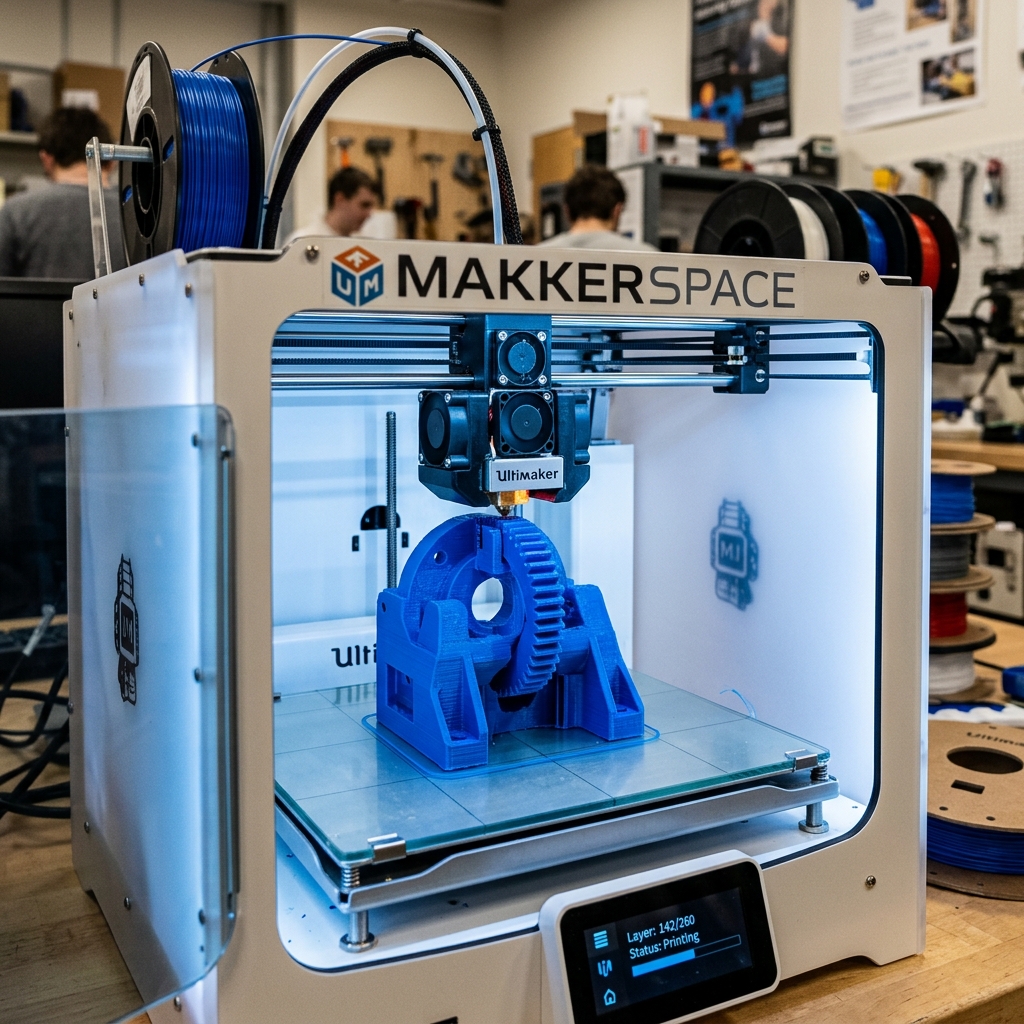
Master the fundamentals of Fused Deposition Modeling (FDM) — from CAD model to finished 3D-printed part.
Unlike subtractive processes that remove material, FDM adds material layer by layer to build up a three-dimensional object — enabling complex geometries that would be impossible to machine conventionally.
💡 Quiz Hint (3D Print vs CNC): Additive manufacturing excels at complex internal features, organic shapes, and undercuts that subtractive tools cannot reach. It is also preferred for quick prototyping/low-volume where speed, cost, and flexibility outweigh machining-level precision.
🎯 Today's Goals
What you will master in this session
3D Printing Workflow
Explain the end-to-end workflow from CAD model to finished part.
Print Settings
Understand resolution, layer thickness, fill structures, and support types.
GrabCAD Print
Configure and send print jobs using GrabCAD Print software.
Operate the F170
Power on, build, monitor, and post-process a 3D-printed husky model.
⚠️ Lab Rules & Safety
Non-negotiable requirements
🚨 Rule #1: Never Operate Alone
Do NOT touch or operate any machine without a lab technician or TA present. Unauthorized operation can cause serious injury.
🥽 Safety Glasses
Must be worn at ALL times in the lab environment.
👟 Closed-Toe Shoes
Leather shoes required. No sandals or open-toe footwear.
👔 No Loose Clothing
Tuck in shirt. No jewelry, rings, or dangling accessories near equipment.
💈 Tie Long Hair
Cover and protect long hair from all moving machine parts.
🔥 Printer Safety Hazards
Know the hazard zones before operating
| Hazard | Location | Precaution |
|---|---|---|
| 🔥 Hot Surface | Oven entrance / platen | Wear high-temp safety gloves and long sleeves when working inside the oven. |
| ⚡ High Voltage | Electrical panel / power supply enclosures | Risk of electric shock — do not access panel. |
| ⚙️ Moving Parts — Gantry | Under top cover (X & Y axes) | Never wear loose clothing or jewelry near timing belts and pulleys. |
| ⬇️ Moving Parts — Z Stage | Oven interior (drive belt & pulley) | Z motor disables automatically when oven door is open. |
🧪 Material Selection
Choosing the right material for the job
Three factors drive material selection for 3D printing:
Application
What will the part be used for in real-world conditions?
Aesthetics
Surface finish, color, and visual appearance requirements.
Functionality
Strength, flexibility, temperature, and chemical resistance.
📏 Print Resolution & Layer Thickness
The key parameter for quality vs. speed
Layer thickness is the vertical height of each deposited layer — essentially the Z-axis resolution of your print.
Thin Layers → High Resolution
Smoother surface finish and finer detail. Longer print time and more material consumed.
Thick Layers → Low Resolution
Faster print with less material. Visible layer lines and reduced surface quality.
Note: The actual value may be adjusted by the lab technician or TA on the day of the lab.
🧱 Model & Support Fill Structures
Control interior density and support strategy
Model Interior Options
| Type | Description | Best For |
|---|---|---|
| Solid | Fully filled interior | Maximum strength; longer build time and more material |
| High Density Sparse | Default — highly recommended | Best balance of strength, speed, and reduced part curl |
| Low Density Sparse | Honeycombed/hatched interior | Shortest build time and minimum material; reduced strength |
Support Fill Options
| Type | When to Use |
|---|---|
| Basic | Most parts — consistent raster spacing |
| Sparse | Minimizes support material; larger spacing between rasters |
| Minimal | Small parts with small features; do NOT use for tall columns or large parts |
| Surround | Tall, thin models — entire model surrounded by support |
💡 Quiz Hint (Support Materials): Support structures are temporary. They combat gravity by providing structural backing for overhangs, bridges, and stabilizing complex unsupported features during printing. They do not increase final permanent mechanical strength or reduce overall material consumption.
🛠️ Stratasys F170 Components
Know your machine before you operate it
Top Cover
Access to the gantry and head assemblies. Unlocks in conjunction with the oven door.
Oven Door
Access to platen, tip wipe assemblies, and purge area. Electromagnetic lock + optical sensors.
Material Bay Drawer
Left bay = model material. Right bay = support material. Can be opened while printing.
Gantry
Moves the print head in X and Y. One X servo motor + two Y servo motors on timing belts.
Interface Panel
Touchscreen UI, power button, and USB ports on the front right face of the printer.
Y Blocks
Junction allowing two material bays to alternately drive filament to each print head.
🔆 Inside the Oven
Key components in the F170 oven chamber
Platen
Steel surface on which parts are built. Substrate is locked using the ejection handle — lift to lock, press to release.
Tip Wipe Assemblies
One for model, one for support. A flicker cuts purged material from the tip; a brush cleans the tip shield.
Purge Chute
Routes purged material debris from tip wipe assemblies down to the bottom of the oven chamber.
Camera
Housed in the oven door frame. Enables remote build quality monitoring through GrabCAD Print — auto-captures photos at set intervals.
Oven Light
Single light pipe at the front upper edge of the oven. Toggled via the Tools page on the UI.
Oven Door Gasket
Perimeter seal that provides an airtight closure when the door is shut.
🖥️ User Interface
Touchscreen navigation on the Stratasys F170
The Navigation Menu provides one-touch access to four functional areas:
🏗️ Build
Start, pause, or abort a job. View build time estimate, status, and progress ring.
📋 Queue
Access job files sent from GrabCAD Print or loaded via USB. Select the job to build next.
🧰 Materials
Monitor spool volumes, head statuses, and change materials or heads as needed.
🔧 Tools
Calibrations, network config, oven light, and printer maintenance settings.
🚀 Startup & Loading a Job
Powering on and sending files to the printer
Power ON: Verify power cord connections at both ends. Press the power button on the front. Wait for the touchscreen to initialize and the automatic XY Gantry Calibration to complete.
GrabCAD Print (Preferred): Download Husky.stl from Canvas. Configure print settings in GrabCAD Print. Send job via Ethernet or Wi-Fi. Jobs appear in the Queue page automatically.
USB Method (Alternative): Plug flash drive into any USB port → Queue page → Load File → USB → Select job → Job Details → Press Print.
📊 Build Monitoring & Warnings
Tracking the print job in real time
The Job Details page displays: Duration, Author, Materials, Number of Layers, Slice Height, and Software Version.
Yellow Badge
Warning — may affect build quality. Can often be bypassed (except material mismatch).
Red Badge
Error — serious issue requiring resolution. Touching the text shows steps to correct it.
🧤 Removing the Printed Part
After the build is complete — safety first
🔥 Warning: Hot Surface Hazard
Always wear heat-protective gloves and long sleeves when handling items inside the oven. Surfaces can be very hot after printing.
Open the oven door. Push down on the substrate ejection handle to release the substrate from the platen.
Remove the substrate. Do NOT remove the part while the substrate is still on the platen — this can damage the platen.
Firmly flex the modelling base back and forth to loosen the part. Use a putty knife if needed. Parts are easier to remove when still warm.
Insert a new modelling base. Close the chamber door. Only then press Yes on the display. Pressing Yes before replacing the base can damage the printer.
🧴 Post-Processing
Removing support material with Clean Station DT3
The Clean Station DT3 uses heat, agitation, and flow technology to dissolve soluble SUP706 support material using an alkaline cleaning solution.
| Step | Action |
|---|---|
| 1. Fill Tank | Close drain valve. Connect drainage hose. Fill tank to ~1 inch below top (approx. 23 L / 6 gallons). |
| 2. Add Solution | Add NaOH (sodium hydroxide) and Na₂SiO₃ (sodium metasilicate) to the water in the tank. |
| 3. Power On | Confirm power switch is in the OFF position first. Verify water level. Then press power switch to turn on. |
| 4. Control Panel | Use Set, Infinity, and Arrow buttons to configure and monitor cleaning time and water temperature. |
| 5. Remove & Drain | Remove the printed model from the station. Drain the tank after the cleaning cycle is complete. |
🐾 Your Task: Print the Husky
Putting it all together — step by step
Step 1 — Download
Get Husky.stl from Canvas.
Step 2 — Configure
Open in GrabCAD Print. Set layer thickness (0.01 in), support (breakaway), model fill (high density sparse).
Step 3 — Send Job
Send to the F170 via GrabCAD Print or USB. Verify it appears in the Job Queue on the printer display.
Step 4 — Print & Monitor
Select job in Queue, press Print. Monitor build status and use camera through GrabCAD Print.
Step 5 — Remove Part
Wear gloves. Eject substrate, flex to remove part, insert new base, confirm "Yes" on display.
Step 6 — Post-Process
Place in Clean Station DT3 to dissolve breakaway support material with alkaline solution.
✅ Lab 3A Complete
You're ready for hands-on 3D printing!
Today's Key Principles:
1. Safety First: Gloves, glasses, proper attire — TA supervised at all times.
2. Settings Matter: Layer thickness drives the quality vs. speed tradeoff.
3. Fill & Support: Choose the right interior and support type for each
part.
4. Post-Process: The Clean Station DT3 dissolves soluble support material.